4.1. Initial configuration of the manager's device authentication function
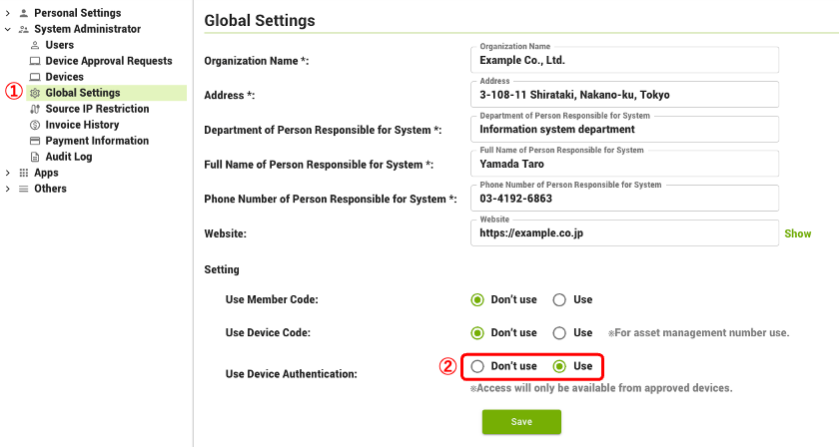
- Select "Use" in ②"Use Device Authentication" on the ①Global Settings Window and save the settings. The default value for "Use device authentication" on the user side is "Do not use", so this operation will not suddenly require device authentication for all users for the first time. It is recommended to change to "Use" one person at a time at first to check the operation.
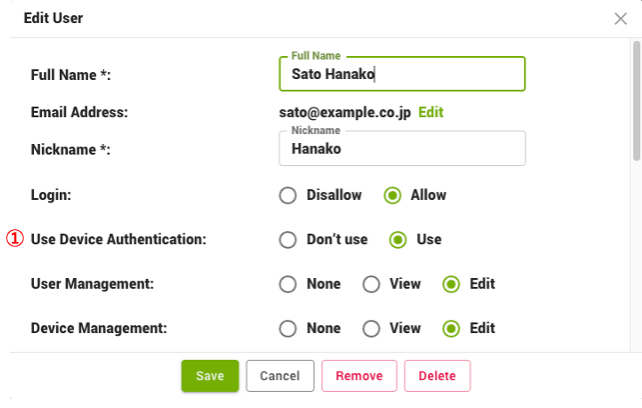
- Click on the "Users" in the left menu, click on the row of the user for whom you wish to turn on device authentication, open the "Edit User" window, and select "Use" for ① Use device authentication and save.
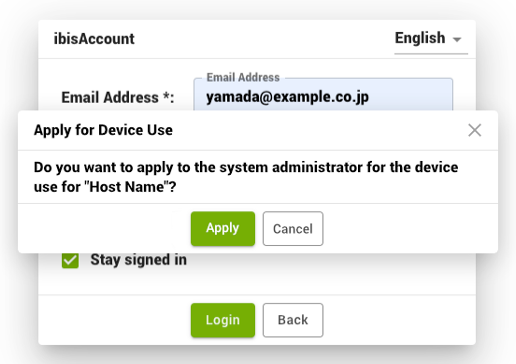
- When the target user logs in after turning on device authentication, after the target user enters his/her email address and password on the login window, the system checks if the web extension for device authentication and the native application are installed, and if they pass, the window above is displayed. Press the "Apply" button.
- When the target user clicks the "Apply" button for the device authentication, an email with the subject "ibisAccount Device Use Approval Request" will be sent to the system manager who has the privileges of device editing.
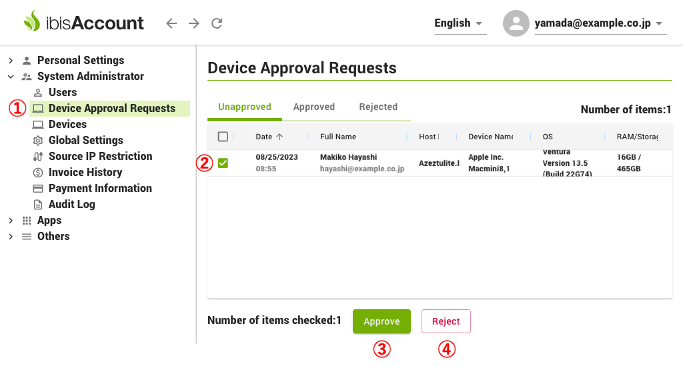
- The system manager opens the "Unapproved" tab of the "Device Approval Requests" window by clicking on ① Device Approval Requests. Click on the application line to see the details of the device information. After confirming that the device is an organization-approved device, check the ② check mark at the left end of the application line, and press ③ the "Approve" button. If the device is not an organization-approved device, click ④ "Reject" button.
- When the system manager presses "Approve", the applicant will receive an email indicating that the application has been approved.
- When the target user logs in again, the login succeeds with device authentication.


