- 1. ibisAccount Overview
- 2. Personal Settings
- 3. System Administrator
- 4. Login Authentication Function
- 5. Others
4.2. Initial setting of user's device authentication function
The device authentication function requires the installation of the ibisAccount native app and web extension for each user.
Supported web browsers are the latest versions of Microsoft Edge, Google Chrome, Safari, and Firefox.
- 1. Install native apps on Windows
- 1.1. Install extensions for Chrome and Edge for Windows
- 1.2. Install Extension for Firefox for Windows
- 2. Install native apps on macOS
- 2.1. Install extensions in Safari
- 2.2. Install extensions for Chrome and Edge for macOS
- 2.3. Install extension to Firefox v for macOS
- 3. Device Application (common to Windows/macOS)
- 4. In case of error (common to Windows/macOS)
<1. Install native apps on Windows>
- Open the following link and press the "Download for Windows" button to download the native app installer.
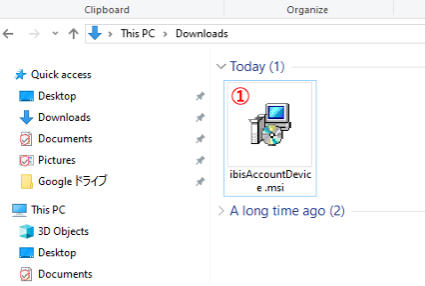
- After the download is complete, double-click ① ibisAccountDevice.msi to execute it.
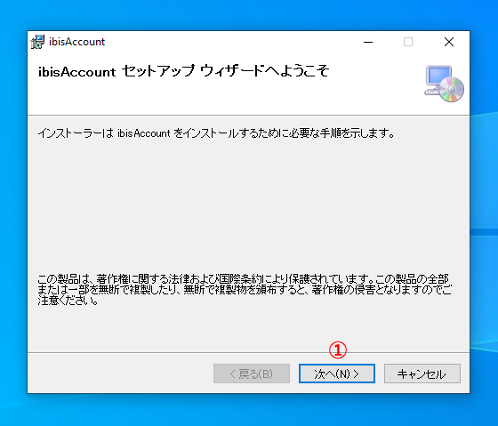
- ① Click "Next" when the setup wizard appears.
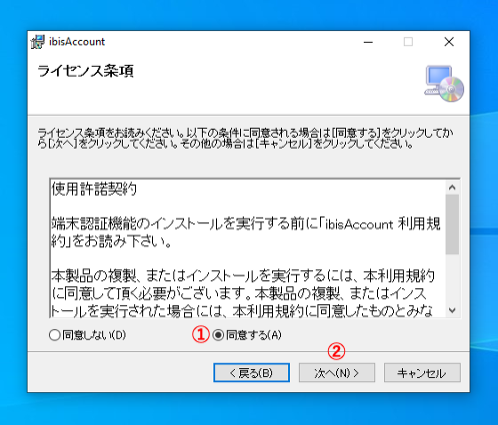
- When the terms of license are displayed, select ①"I agree" and click ② "Next".
- ① Click "Next."
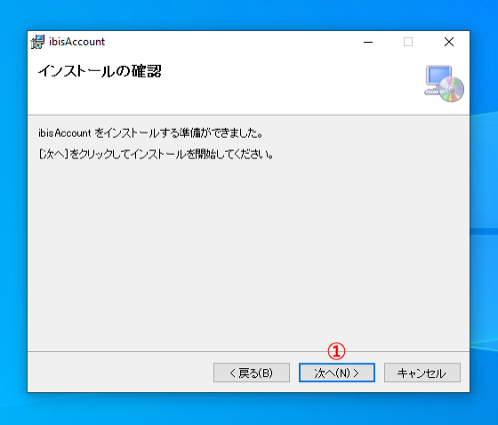
- When installation is complete, click ①"Next".

- ① Click "Close" to close the setup wizard.
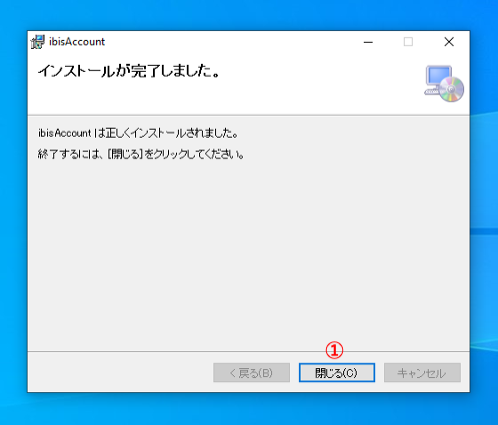
- Once the native app installation is complete, the next step is to install the extension in the browser.
- 1.1. Install extensions for Chrome and Edge for Windows
- 1.2. Install Extension for Firefox for Windows
<1.1. Install extensions for Chrome and Edge for Windows>
- In Chrome or Edge, open the "ibisAccount Extensions in the Chrome Store" page and click ① Add to Chrome.
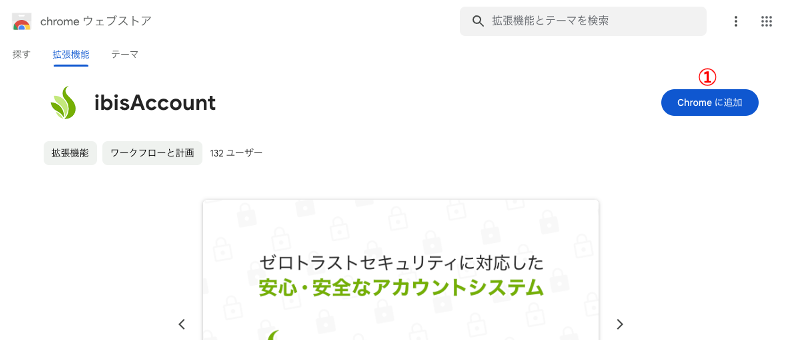
- On the confirmation screen, click ① Add Extension.
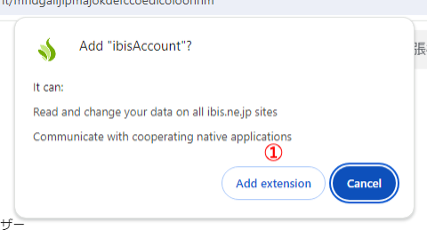
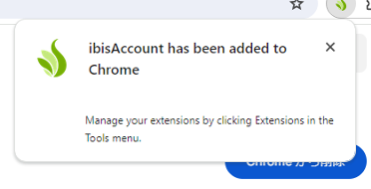
- A completion message will be displayed.
<1.2. Install Extension for Firefox for Windows>
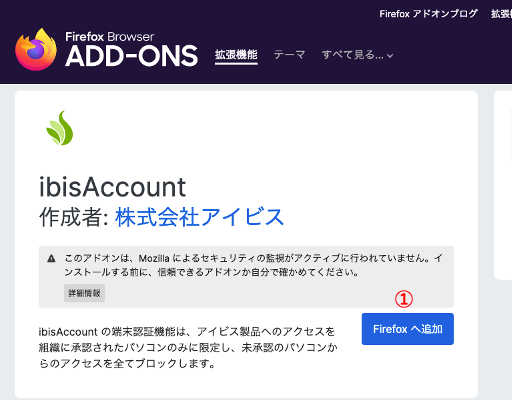
- Open the "Firefox Add-ons ibisAccount Extensions" page in Firefox and click ① "Add to Firefox".
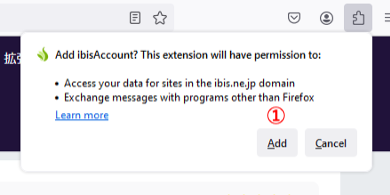
- In the Alert ① Add Alert.
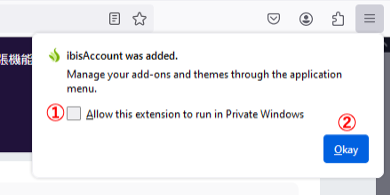
- A message will be displayed indicating that it has been added. ①You may either allow or disallow in the private window. ②Click OKay to complete.
<2. Install native apps on macOS>
- Open the following link and press the "Download for macOS" button to download the native app installer.
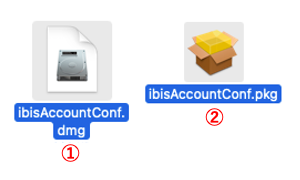
- After downloading, double click on ① ibisAccountConf.dmg. In the dmg file, you will see the file ②ibisAccountConf.pkg. Double-click it to launch the installer.
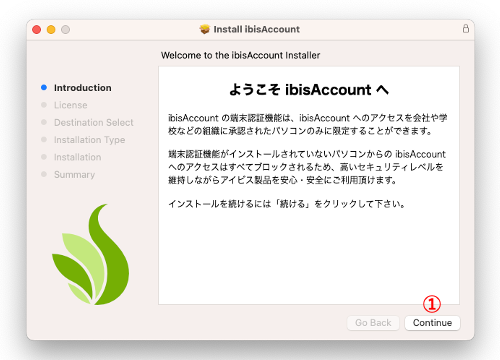
- When a summary is displayed, click ① "Continue".
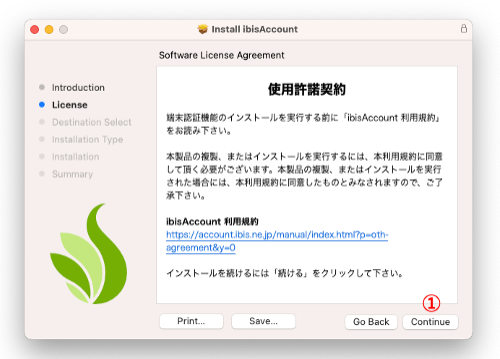
- When the license agreement is displayed, confirm the contents and click ① "Continue".
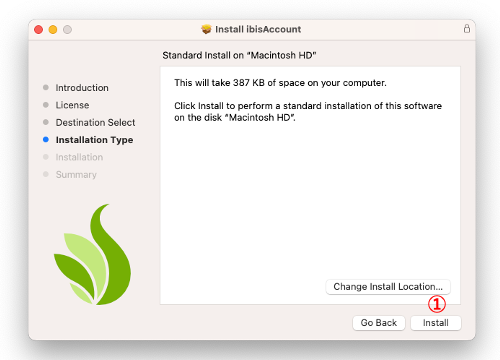
- When the installation destination selection screen appears, click ① "Install".
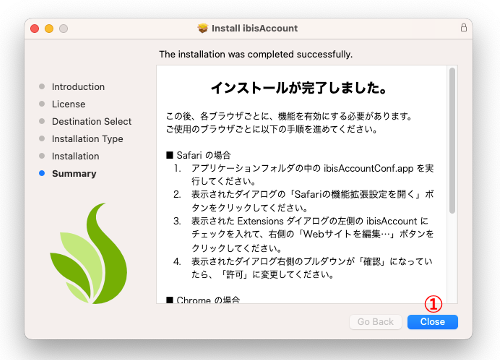
- When the completion screen appears, click ① "Close".
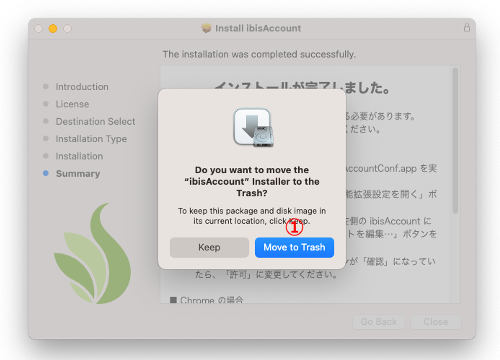
- When asked if you want to delete the dmg file, click ① "Move To Trash".
- After installation, the ibisAccountConf application will start automatically.
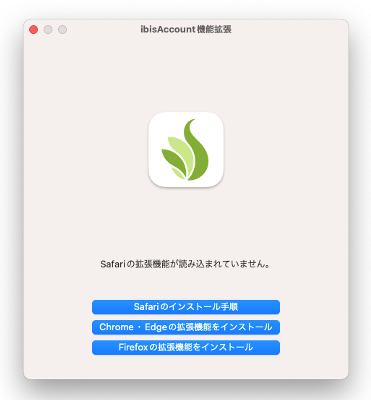
- Next, install the extension in your browser. This is explained for each browser.
- 2.1. Install extensions in Safari
- 2.2. Install extensions for Chrome and Edge for macOS
- 2.3. Install extension on Firefox for macOS
<2.1. Install extensions in Safari>
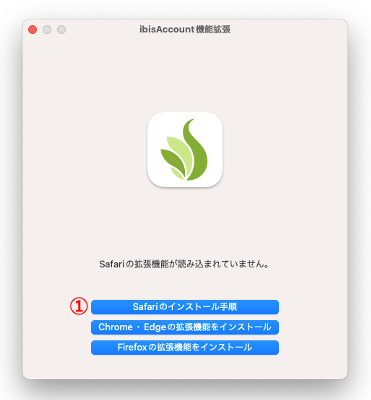
- ibisAccountConf will automatically start when the installation is finished from the dmg file. This application is an installer for browser extensions. ① If the "Safari Installation Instructions" button is displayed, click it to display this page. Also, click to exit ibisAccountConf.
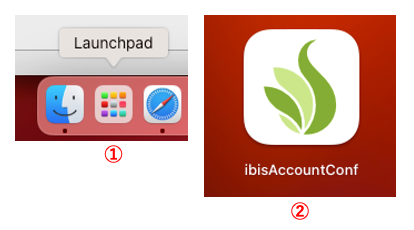
- Launch the ibisAccountConf app again. ① Click on LaunchPad in the macOS dock, ② Find and click on ibisAccountConf.
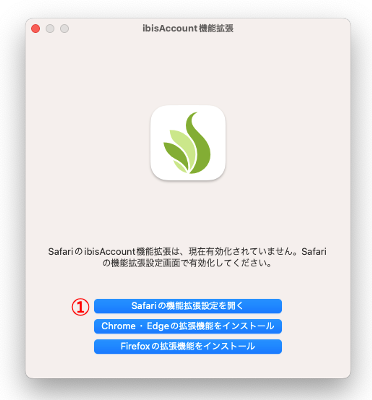
- The first button in ibisAccountConf will change to ① "Open Safari Extension Settings". Click on it.
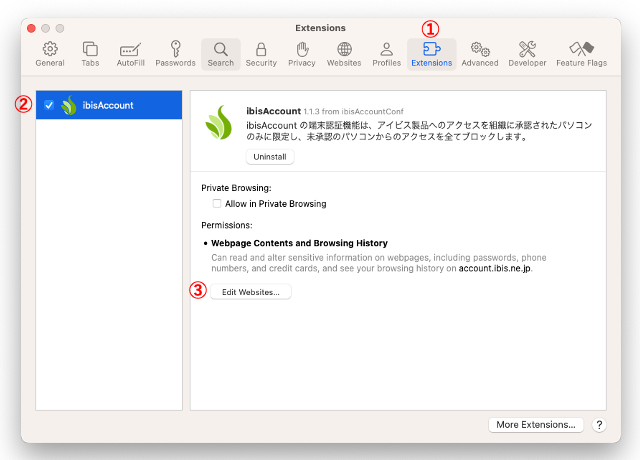
- The ① Extensions tab of the Safari Settings window will open. ② Check the ibisAccount checkbox, and ③ Click Edit Web Site.
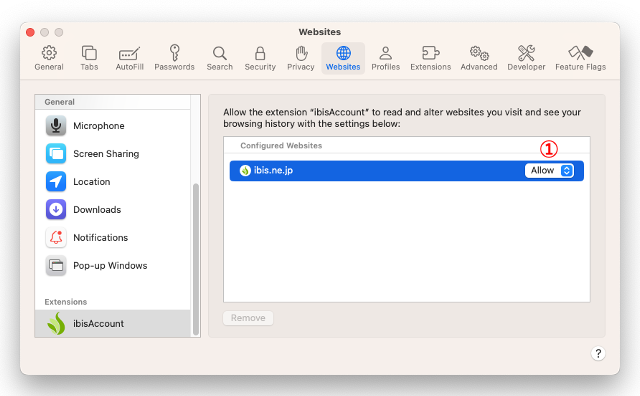
- ① Click "Confirm" on ibis.ne.jp and change it to "Allow".
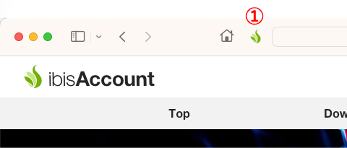
- Access https://account.ibis.ne.jp in Safari and confirm that ①the ibis icon is displayed in green.
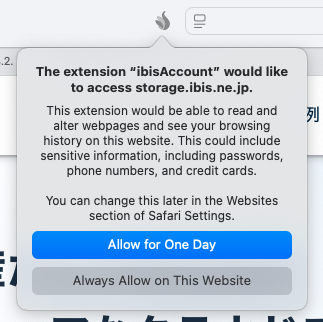
- Access https://storage.ibis.ne.jp, check the bird icon, and if it's gray, click it and select 'Always allow'.
Access https://works.ibis.ne.jp, check the bird icon, and if it's gray, click it and select 'Always allow'.
Access https://scribe.ibis.ne.jp, check the bird icon, and if it's gray, click it and select 'Always allow'.
Access https://contacts.ibis.ne.jp, check the bird icon, and if it's gray, click it and select 'Always allow'.
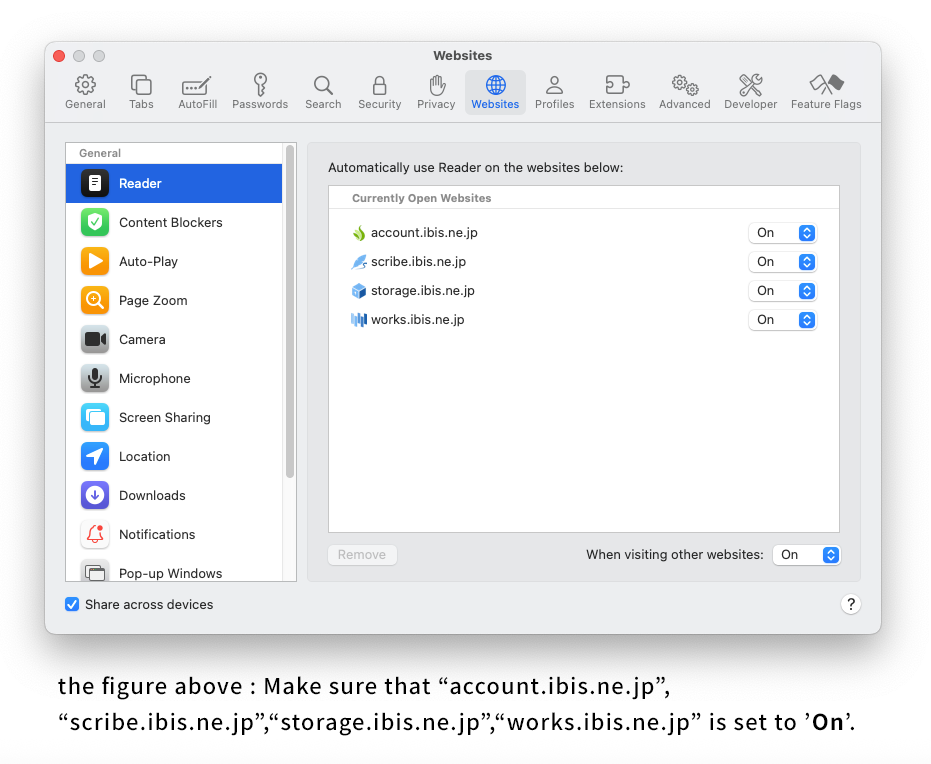
- Open the Safari menu and go to Safari > Settings, then open the Websites tab. In the left pane, click on ibisAccount in the list of web extensions, and make sure it's set to 'On' in the right pane.
<2.2. Install extensions for Chrome and Edge for macOS>
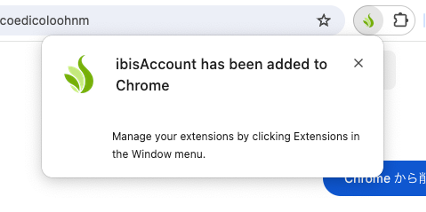
- Open the "ibisAccount Extensions in the Chrome Store" page in Chrome or Edge and click ① Add to Chrome.
- On the confirmation window, click ① Add Extension.
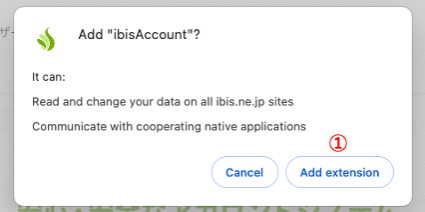
- A completion message will be displayed.
<2.3. Install extension on Firefox for macOS>
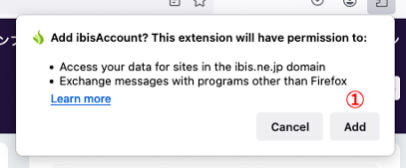
- Open the "Firefox Add-ons ibisAccount Extensions" page in Firefox and click ① "Add to Firefox".
- In the Alert, ① Add Alert.
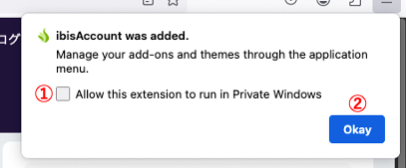
- A message will be displayed indicating that it has been added. ① You may either allow or disallow in the private window. ② Click OKay to complete.
<3. Device Application (common to Windows/macOS)>
- Click on the ibisAccount login button.
- Enter your email address and password and click the Login button. "Stay signed in" is your choice.
- Click "Apply" when the dialog box of the application on device use appears.
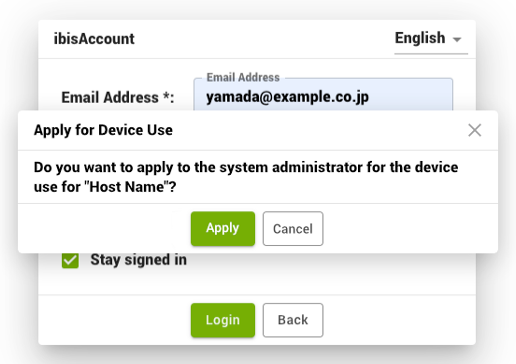
- The application will be sent to the device manager by email. When the device manager approves the use of the device, you will receive an email to notify it.
- When you receive an email with your approval, log in again. If you are successfully logged in, your setup is complete.
<4. In case of error (common to Windows/macOS)>
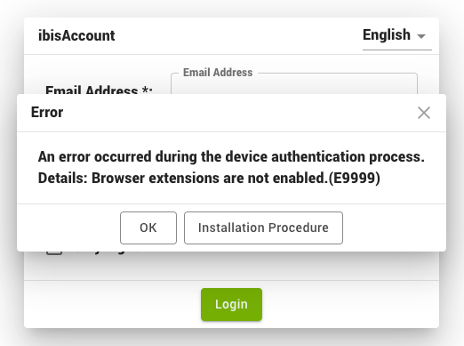
When E9999 error appears
If the web extension is not installed, if there is a problem with the installation, or if the ibisAccount web extension is turned off in the web browser settings, the "Browser extension is not enabled (E9999)" error will occur. Please install with reference to this page.
When E9899 error appears
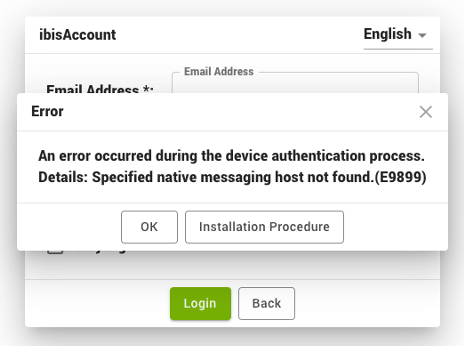
- The web extension is installed but fails to communicate with the native app, resulting in error E9899. Please reinstall with reference to this page.